

# ClubGG HUD
Want to use a full-featured HUD on ClubGG, track your results, and analyze your hands without extra converters or complicated setup? With Hand2Note, you can.
Table of Contents:
Why Use Hand2Note with ClubGG?
Setting Up Hand2Note for ClubGG
# Why Use Hand2Note with ClubGG?
# Everything Works Automatically
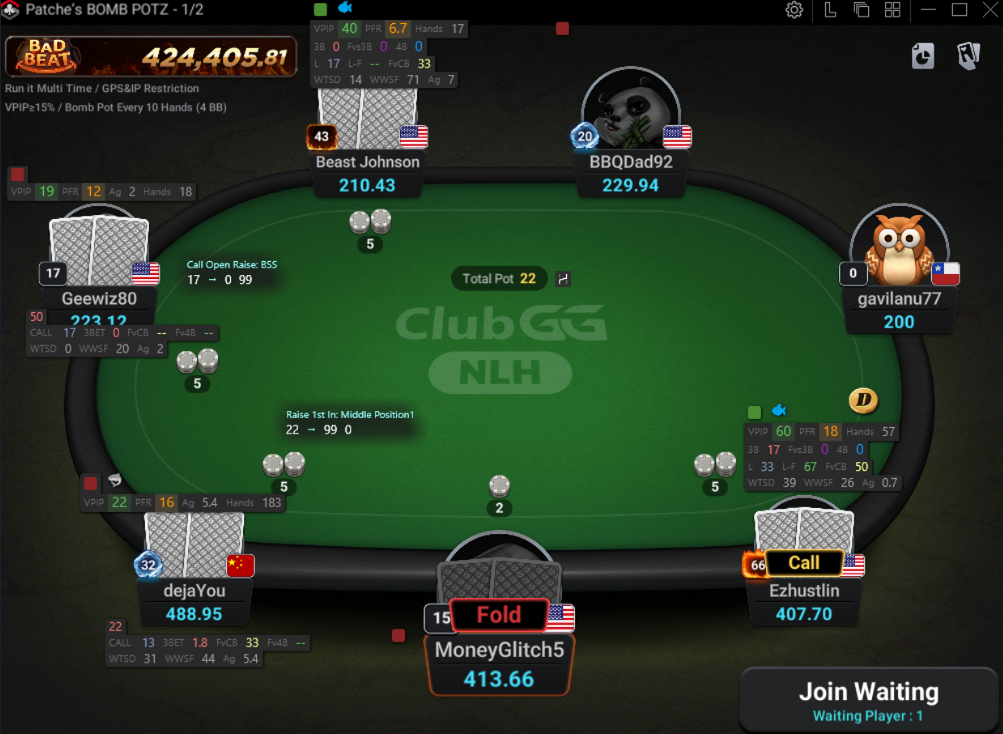
Forget about extra converters and complicated setup. Simply install Hand2Note, open ClubGG, and start playing — Hand2Note will automatically collect your hands and display the HUD.
# Support for All Popular ClubGG Formats
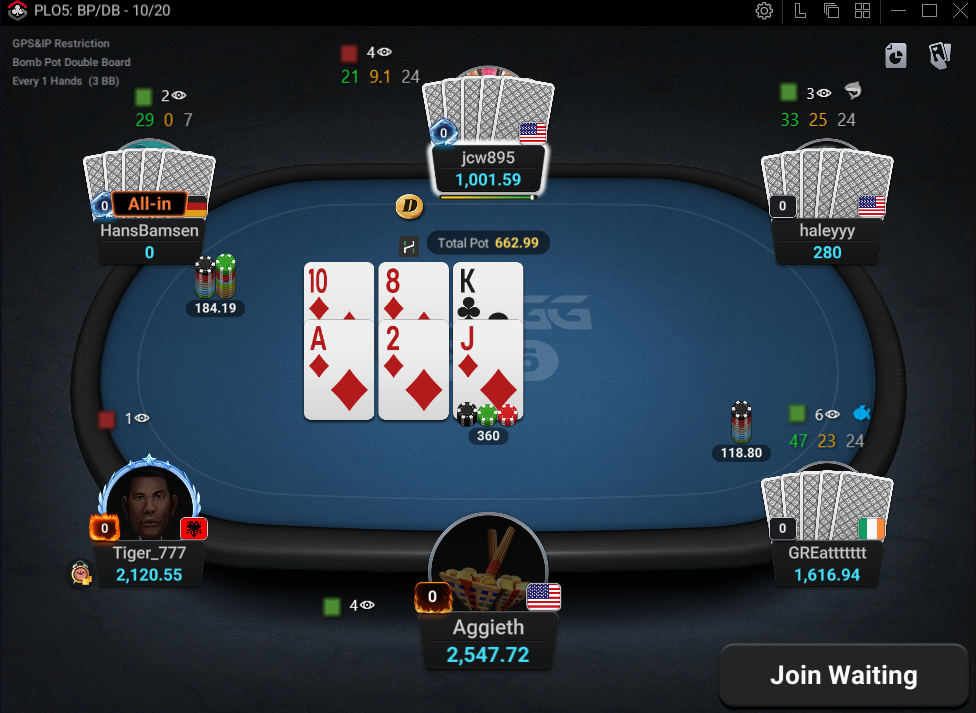
Hand2Note covers all major ClubGG games, including Hold'em, Omaha (PLO4, PLO5, PLO6), Short Deck, Double Board, and Bomb Pots.
It also supports tournaments and tables with mandatory or optional straddles. For the full list of supported formats, see Supported Sites and Apps.
# Use All Hand2Note Features on ClubGG
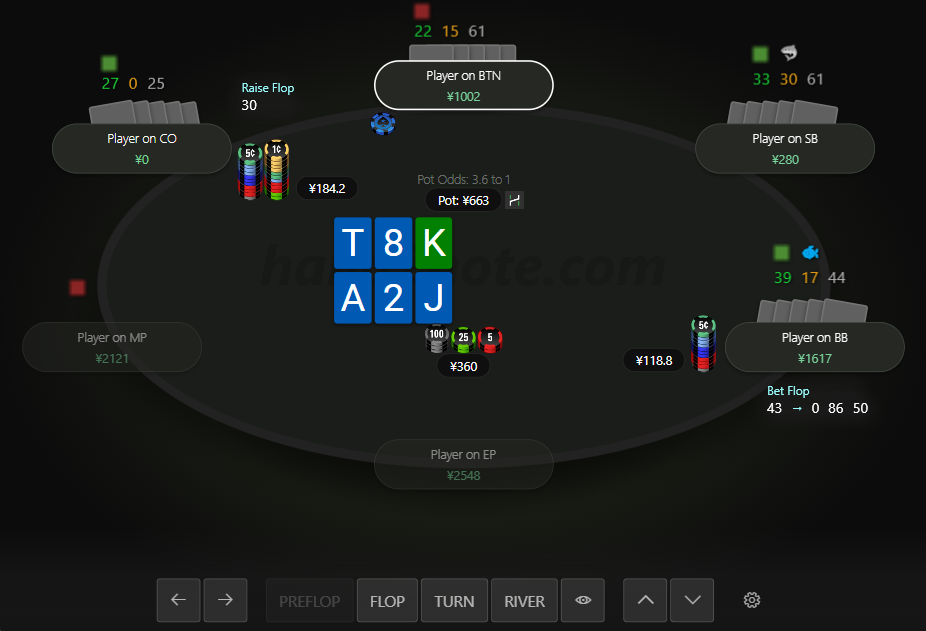
During your session, use:
- Dynamic, Positional, and Auto HUDs;
- player notes and badges;
- visual diagrams and other in-game features.
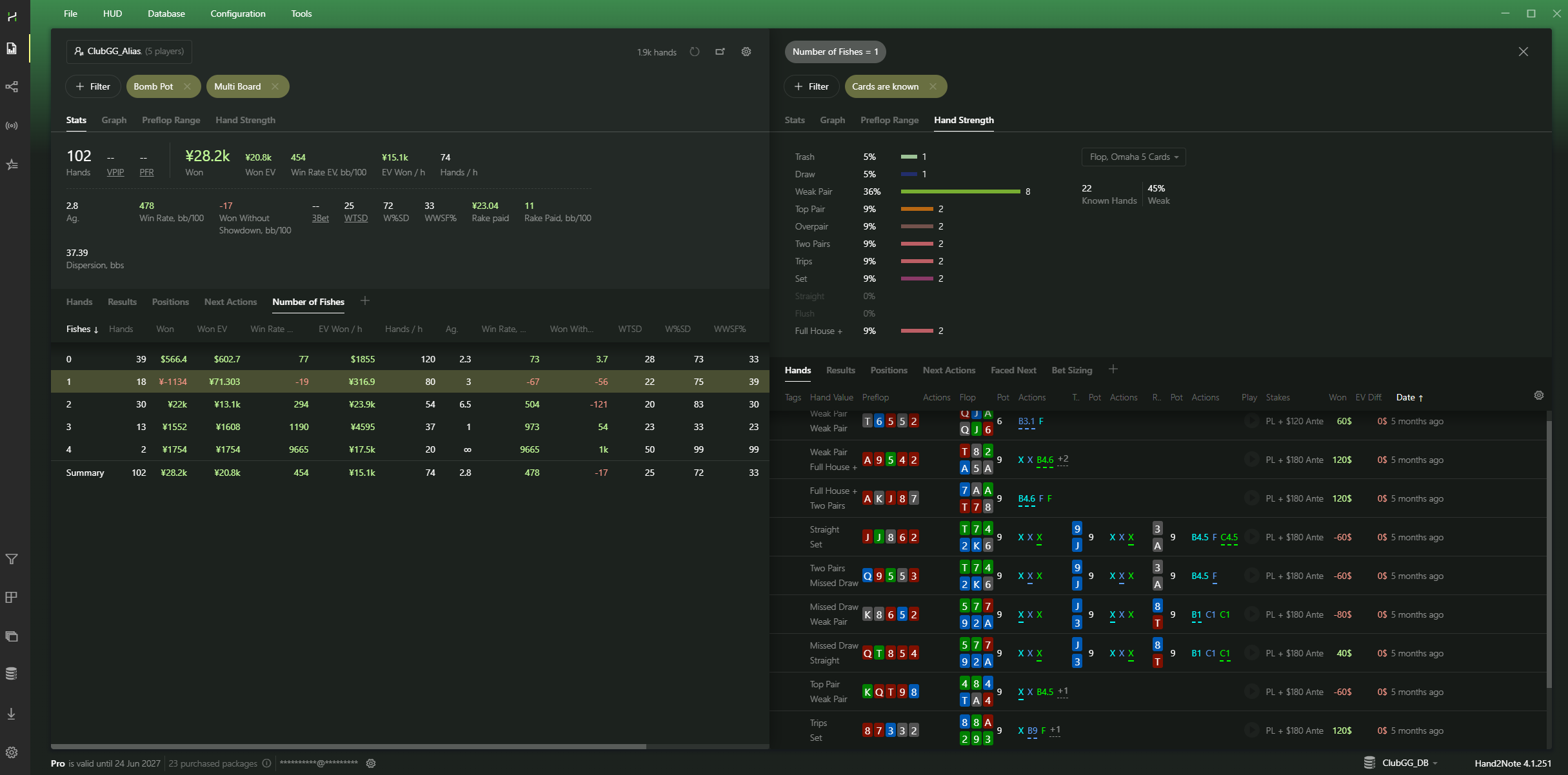
After your session, review your hands and results in Reports. Use Interactive Statistics to analyze your opponents and identify patterns in their play.
Flexible custom filters also let you analyze specific ClubGG formats, such as Bomb Pots and Double Board games, separately.
# Works with PokerCraft Hand Histories
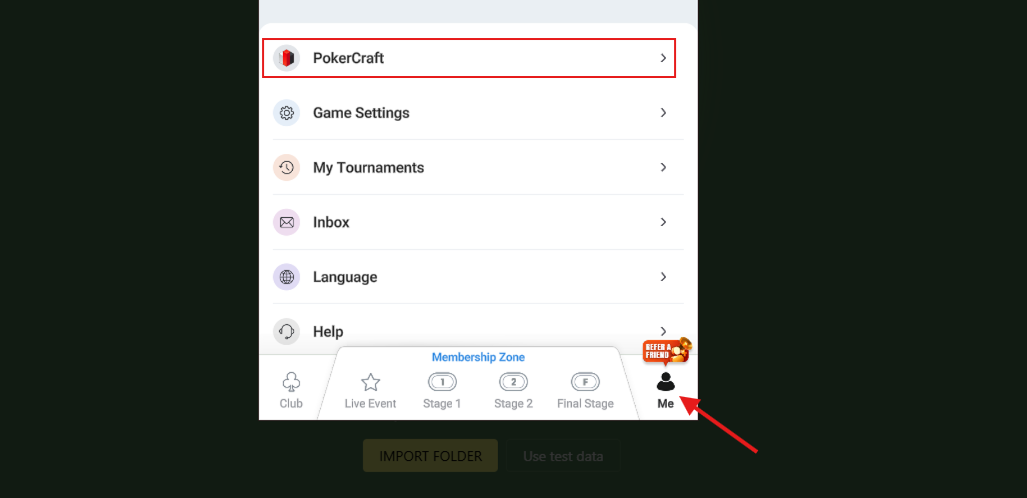
Hand histories downloaded from ClubGG PokerCraft can be imported into Hand2Note for analysis.
# How to Set Up Hand2Note for ClubGG
Step 1. Install Hand2Note.
Download and install the latest version of Hand2Note.
Step 2. Sign In to Hand2Note.
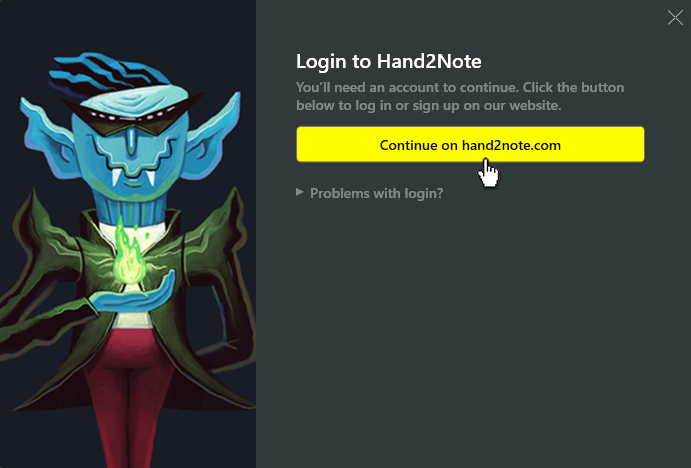
Open Hand2Note and follow the login prompt. If you don’t have an account, create one.
Step 3. Launch ClubGG.
Run ClubGG as administrator: right-click the ClubGG icon and select Run as administrator.
Hand2Note will automatically collect your hands and show the HUD at the table.
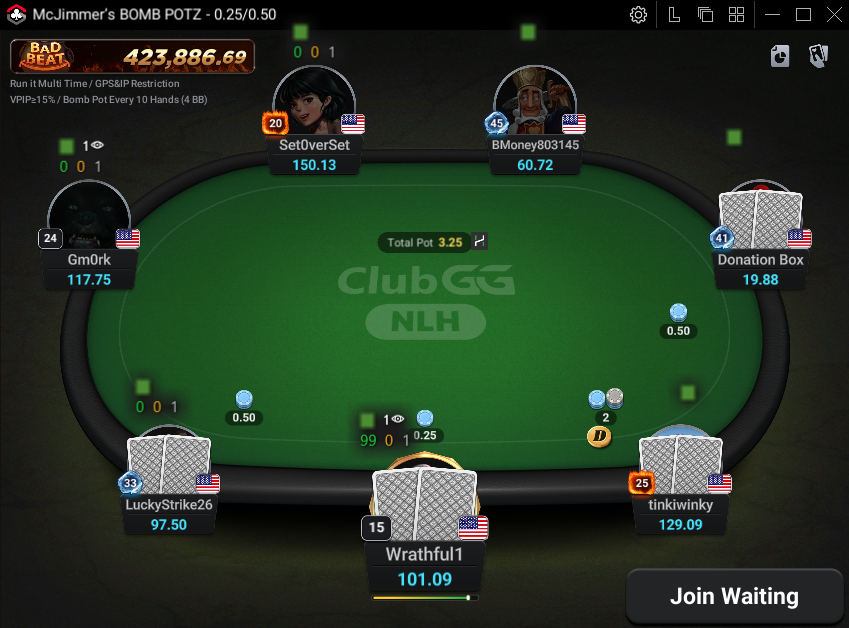
By default, the HUD shows three basic stats:
- VPIP — how often a player voluntarily puts money into the pot;
- PFR — how often a player raises preflop;
- Hands — the number of hands collected for that player.
The HUD also includes a Showdown Indicator, which shows the latest hands revealed at showdown.
Step 4. Create an Alias for Your Hero Accounts.
If you play on multiple ClubGG accounts, combine them into a single alias under Configuration → Hero Nicknames.
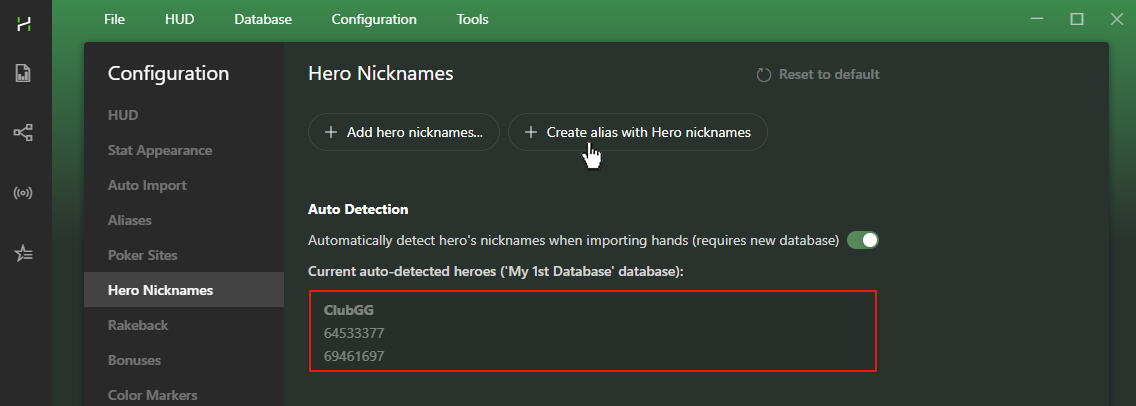
Then select the alias in Reports and Sessions to see your combined stats and results across all accounts.

# Frequently Asked Questions
# What Are Club Rates and How Do They Work?
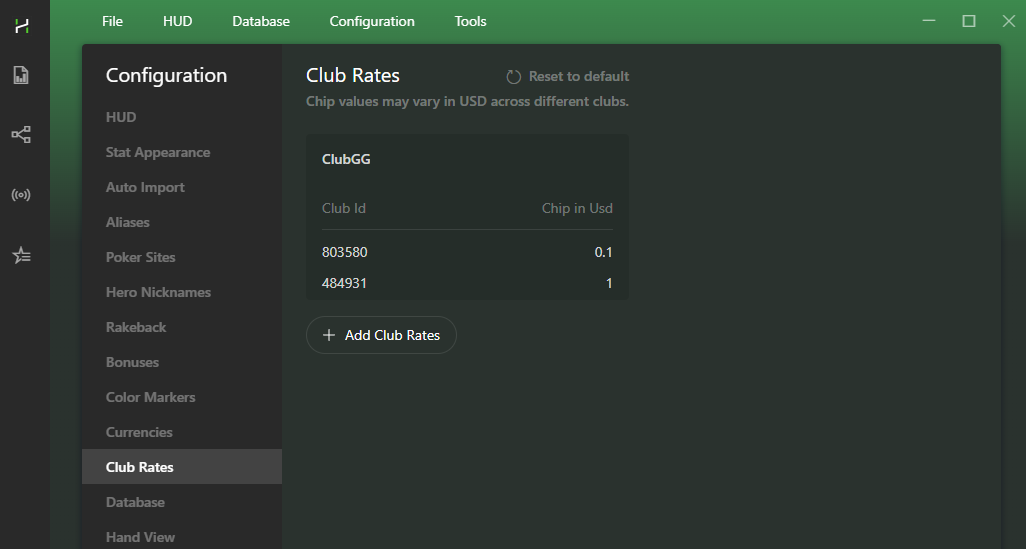
Different ClubGG clubs can use different chip values. Club Rates let you convert those chips into real-money values, so your results are easier to compare on graphs.
For example:
- Club A: 100 chips = $100
- Club B: 1,000 chips = $100
With Club Rates configured, both results will appear as $100 on your graph.
# Can I Change the Currency for ClubGG?
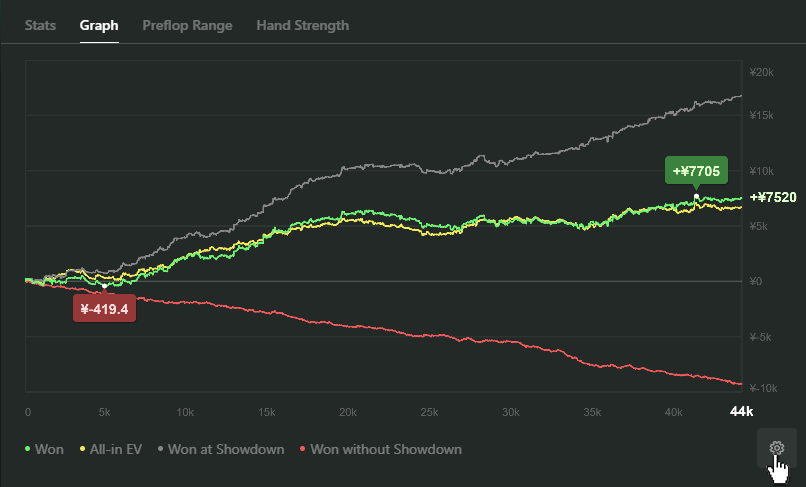
Hand2Note stores all ClubGG hands in Chinese yuan (CNY). This currency can’t be changed, but you can switch your graphs to display results in another currency.
# Can I Run Multiple ClubGG Clients with Hand2Note?
Hand2Note doesn’t have a built-in option for running multiple ClubGG clients.
However, there are free third-party solutions that work with Hand2Note. Contact Support for the latest information.
# Troubleshooting
# HUD Is Not Showing
If the HUD doesn’t appear on your ClubGG tables, try the following:
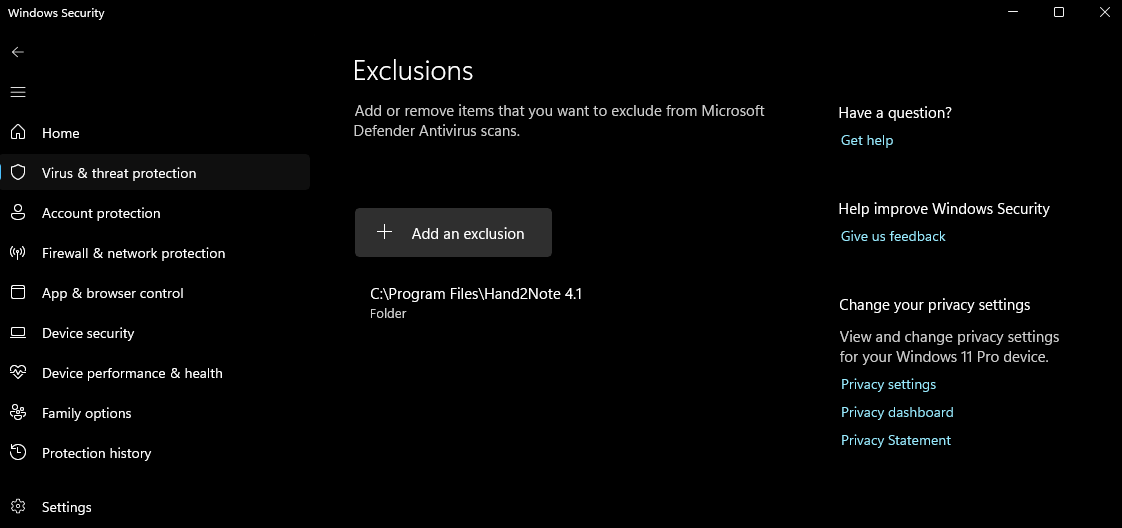
1. Check your antivirus. Add the entire Hand2Note folder to your antivirus exclusions, or temporarily disable your antivirus.
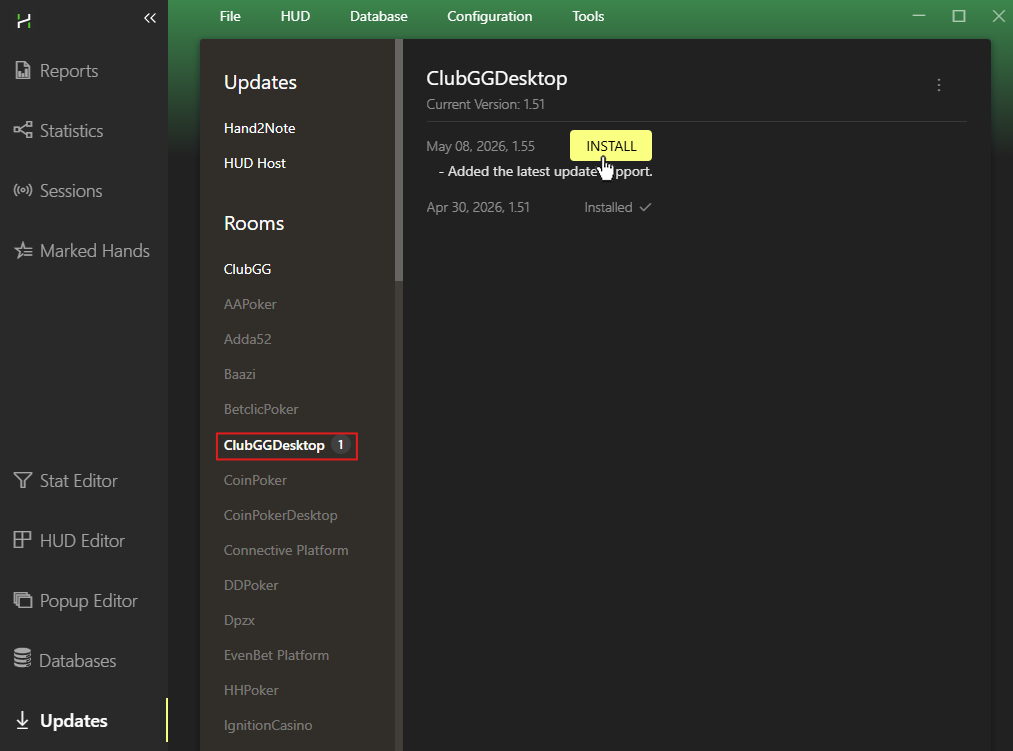
2. Check for updates. Open Hand2Note and go to Updates. Make sure you have the latest versions of: Hand2Note, HUD Host, ClubGGDesktop.
If the HUD still doesn’t appear, contact Support.


